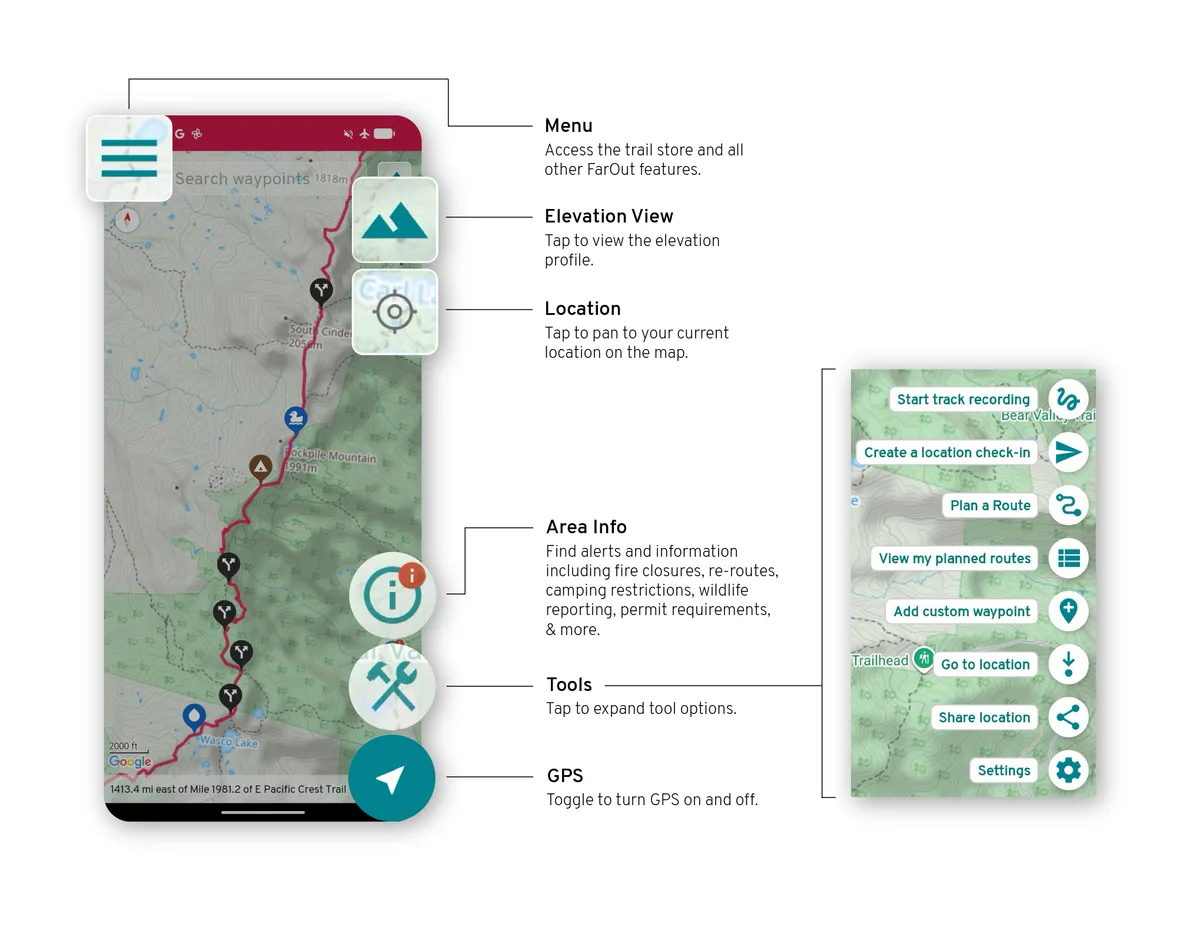
App basics
Find the maps, menus, and tools in FarOut. Choose your device below.
Guide view
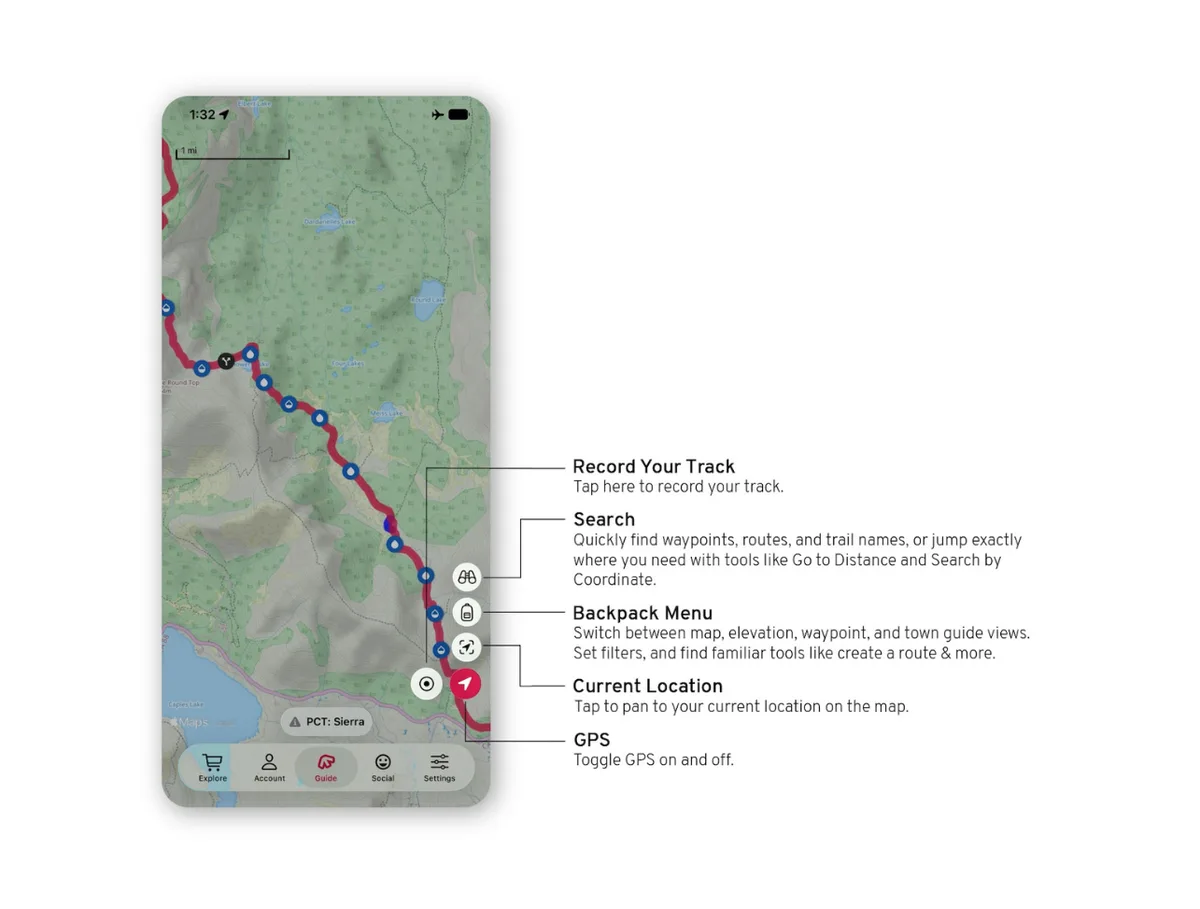
Inside the map view of your guide you can see your location on the trail and record your track.
The tab bar
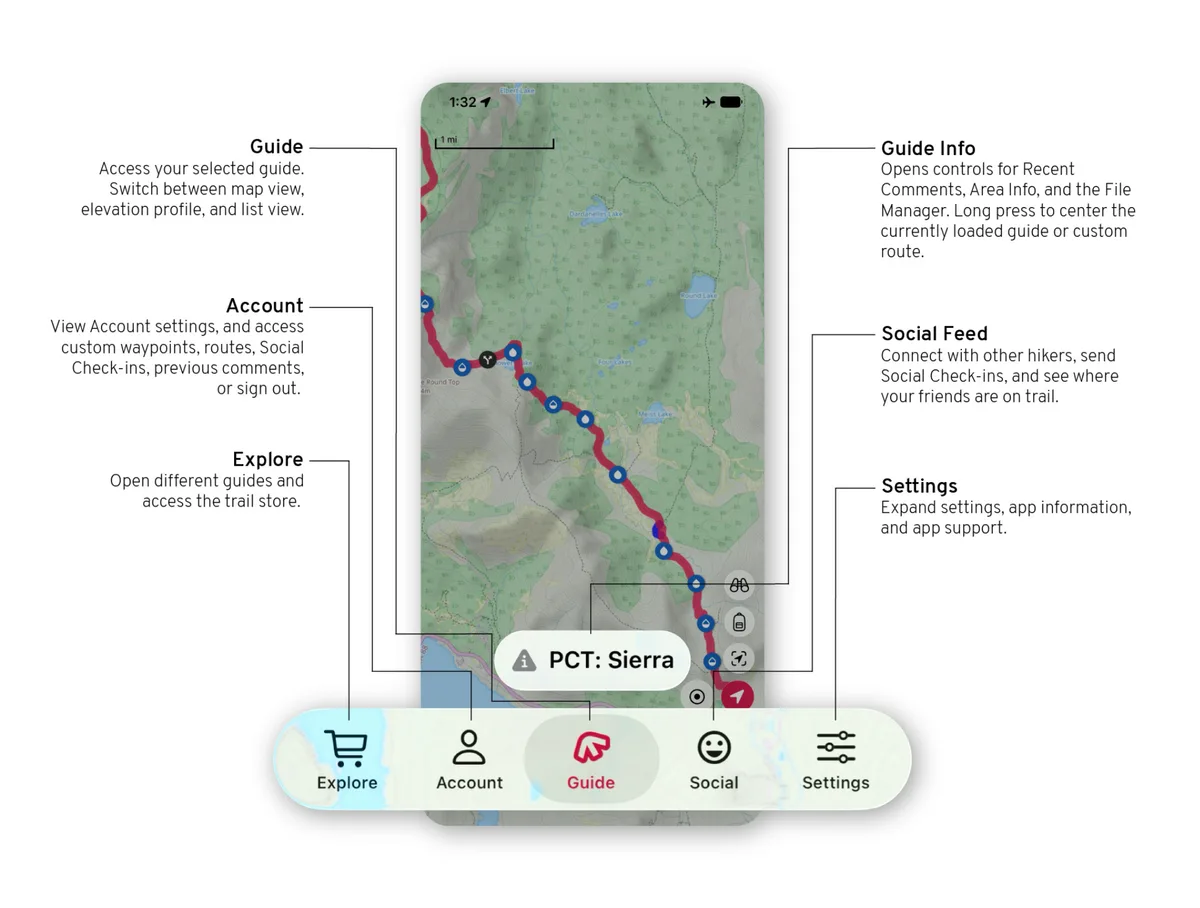
The tab bar runs along the bottom of the screen and is where you choose which part of the app to use: Explore (the store and your guides), Account, Guide, Social and Settings.
The backpack menu
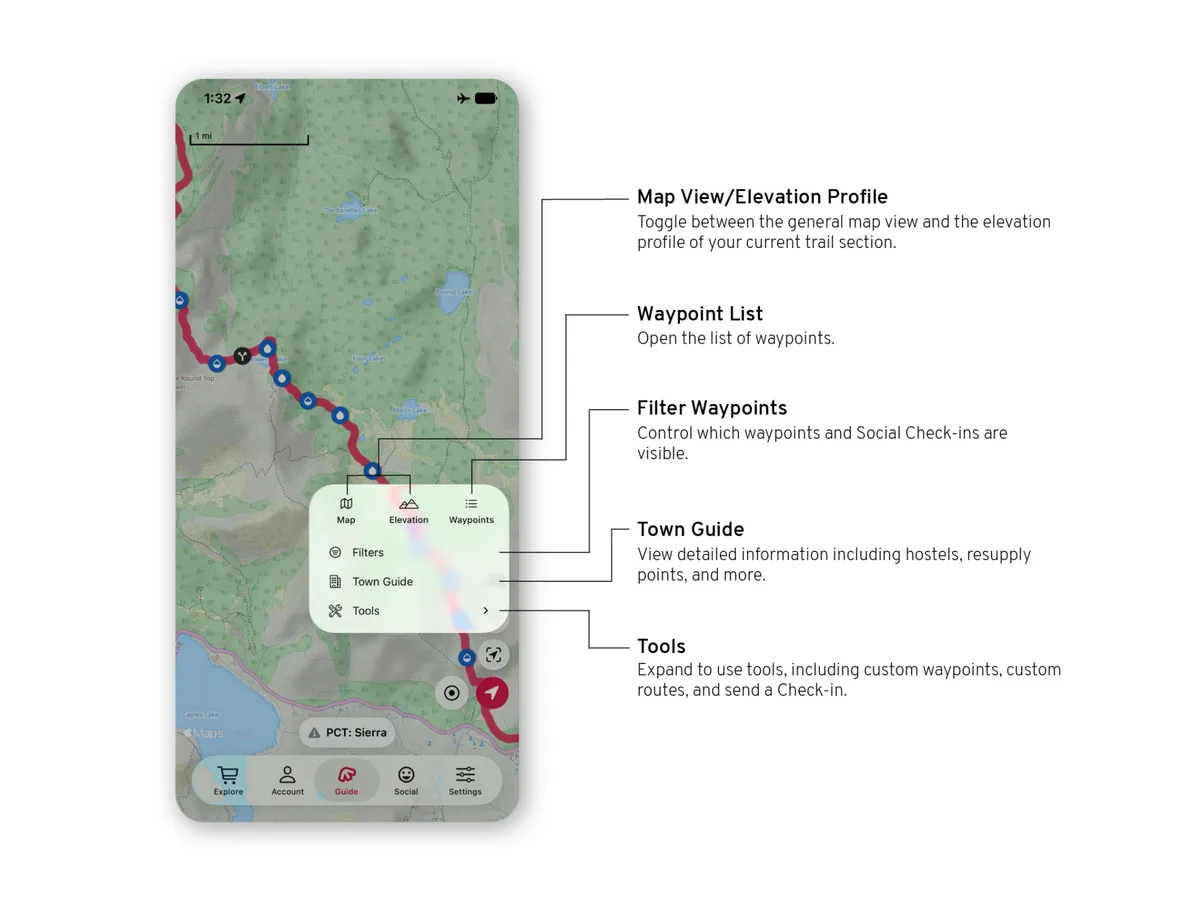
The backpack menu switches between the map, the elevation profile, the waypoint list and the town guide. It also holds the waypoint filters and the tools.
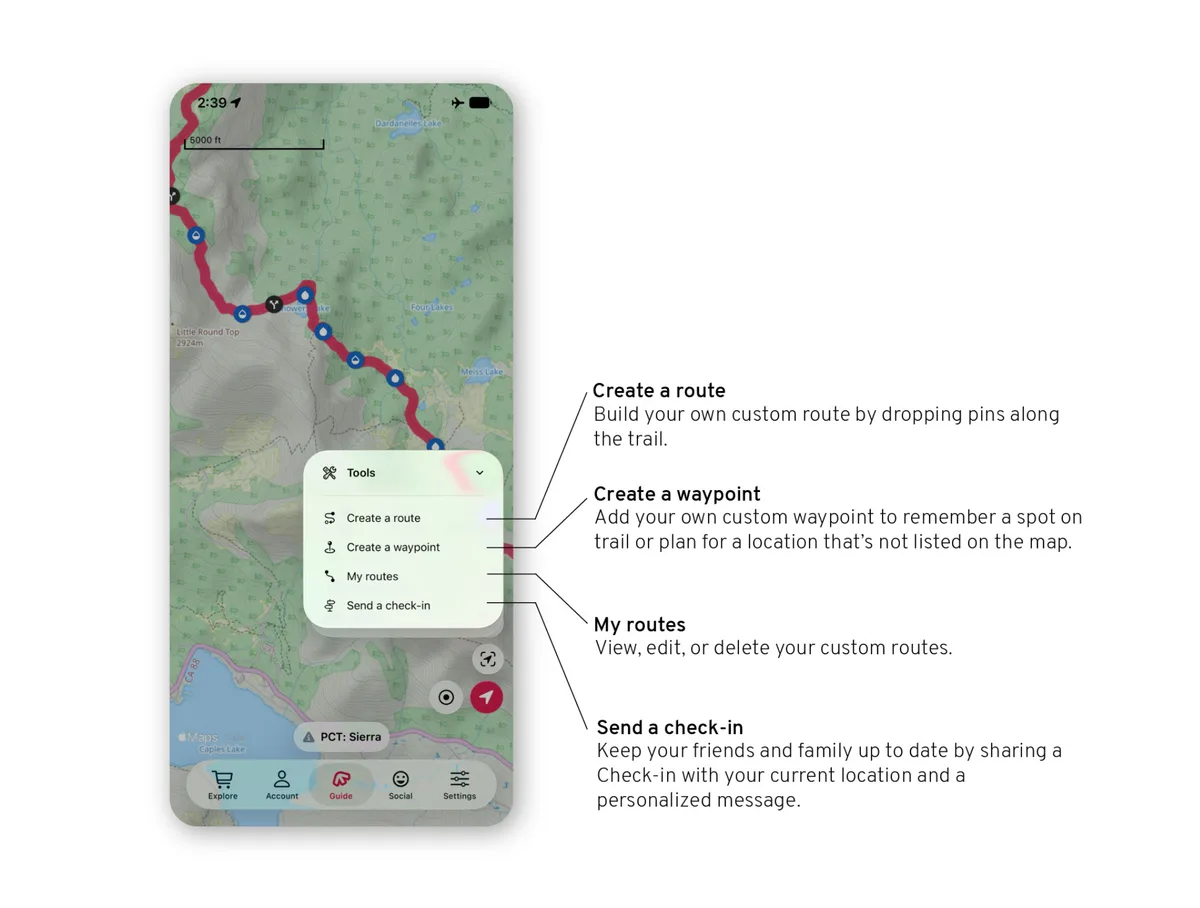
Tools
Create custom routes and waypoints, jump to a specific mile on the trail, or send a Check-in to friends and family.
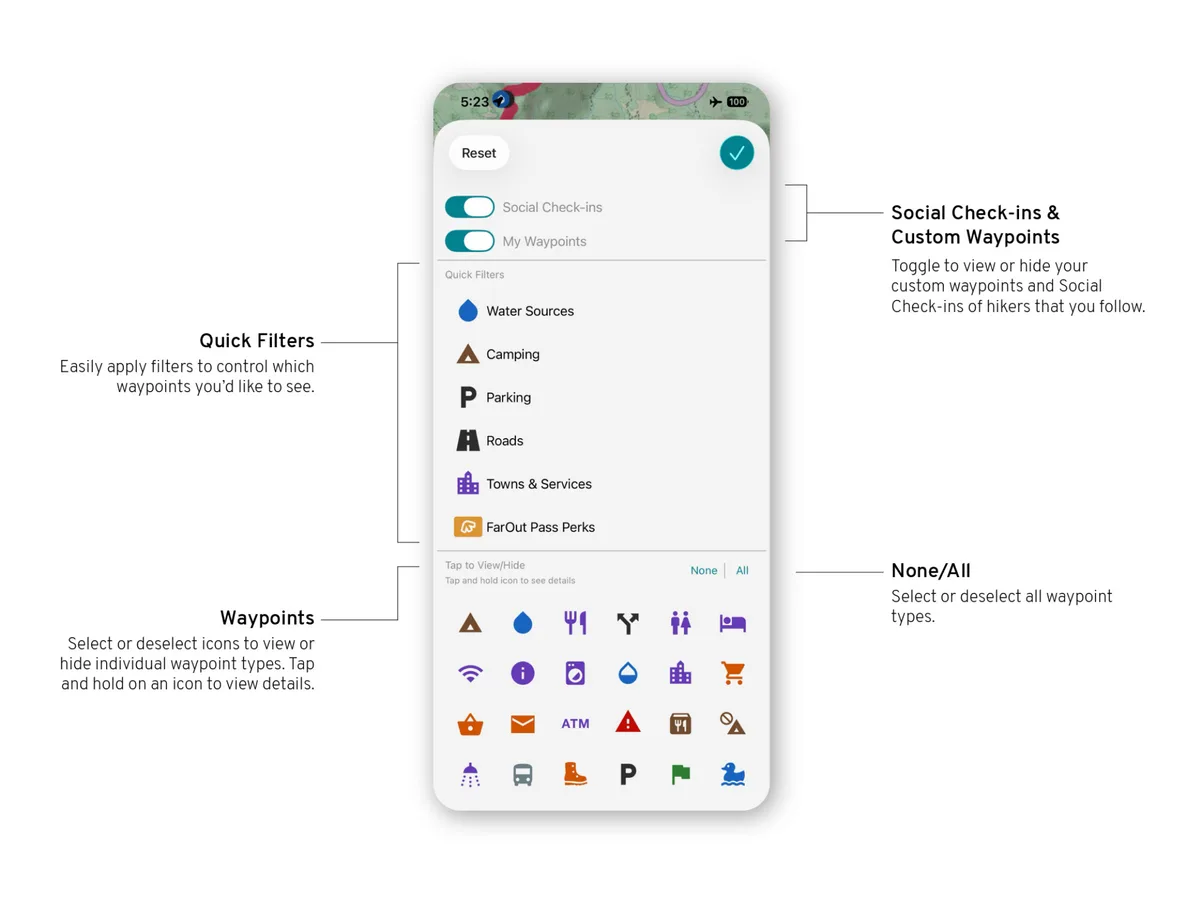
Waypoint filters
Waypoint filters control what you do and do not see in your guide.
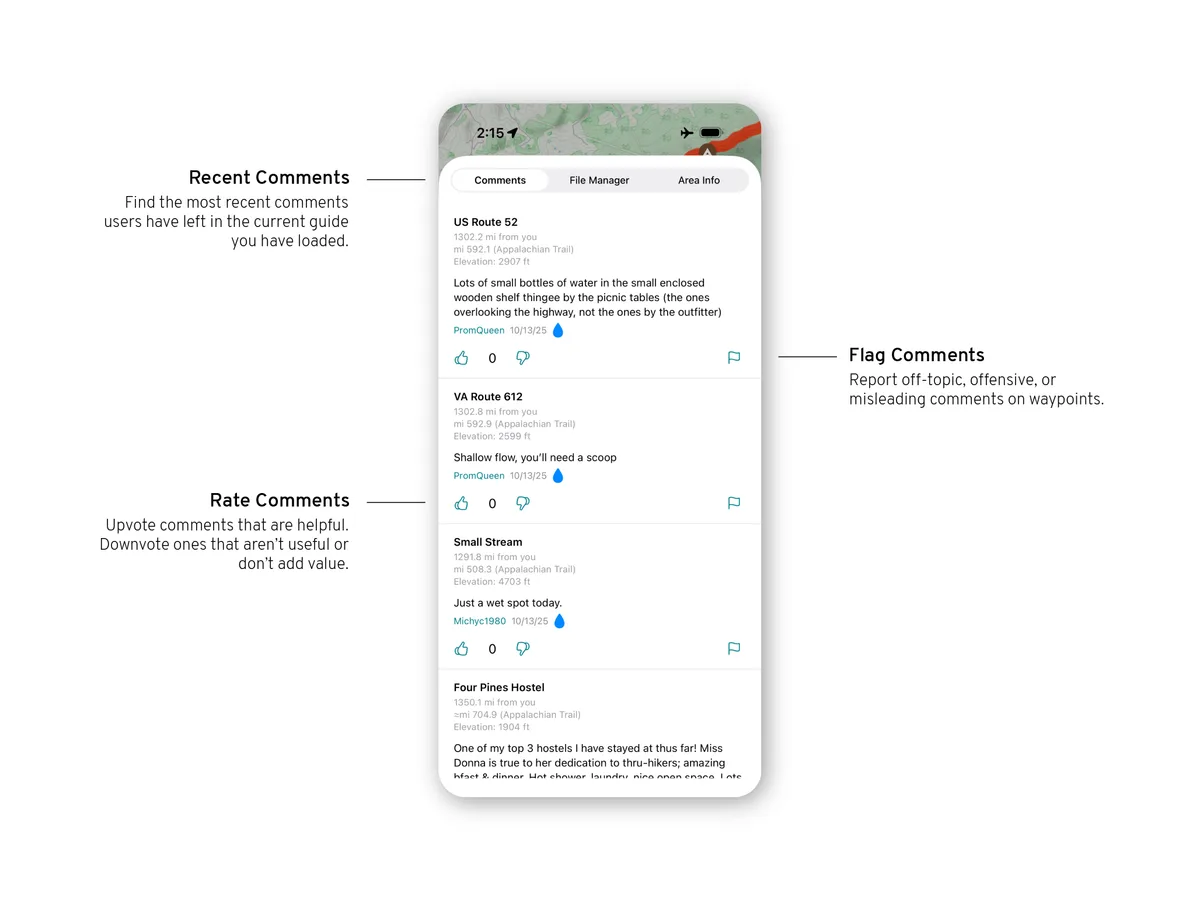
Guide Info
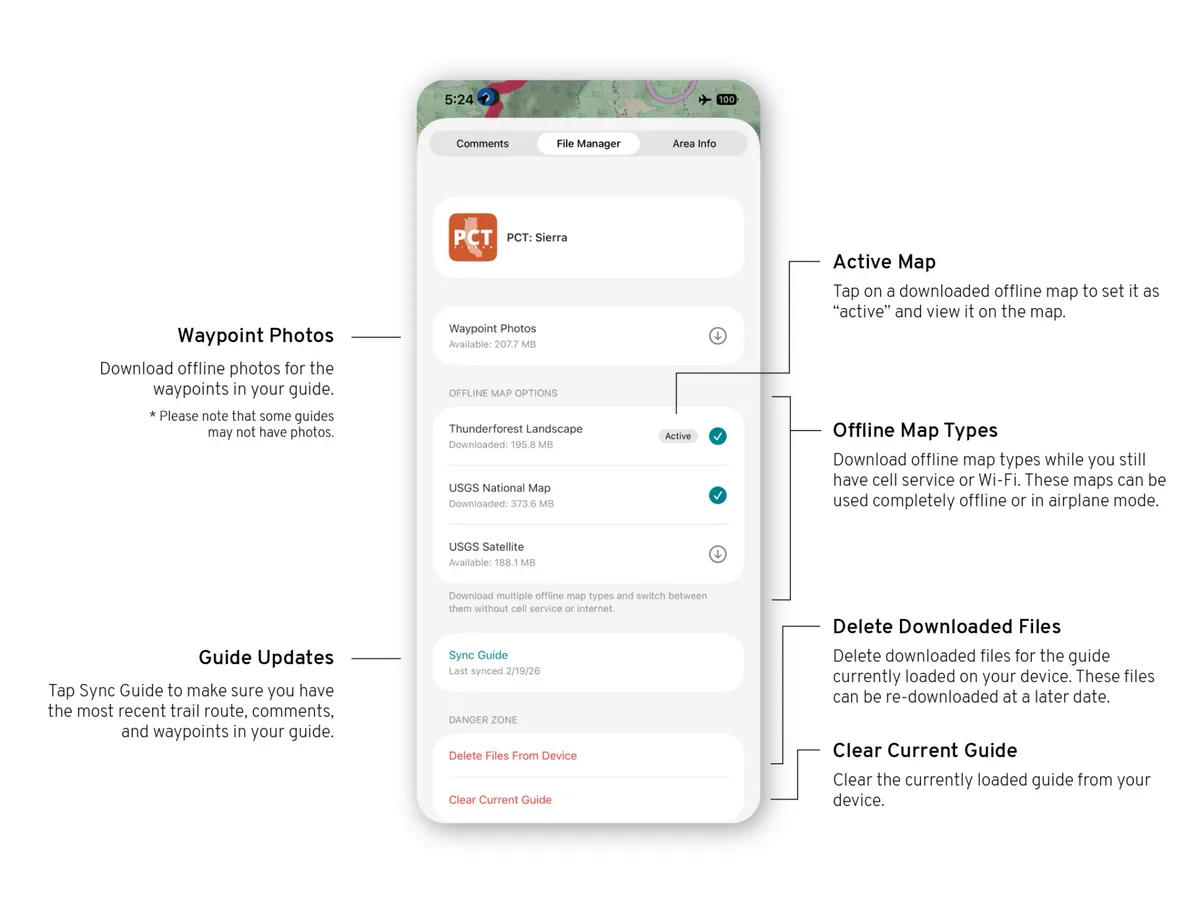
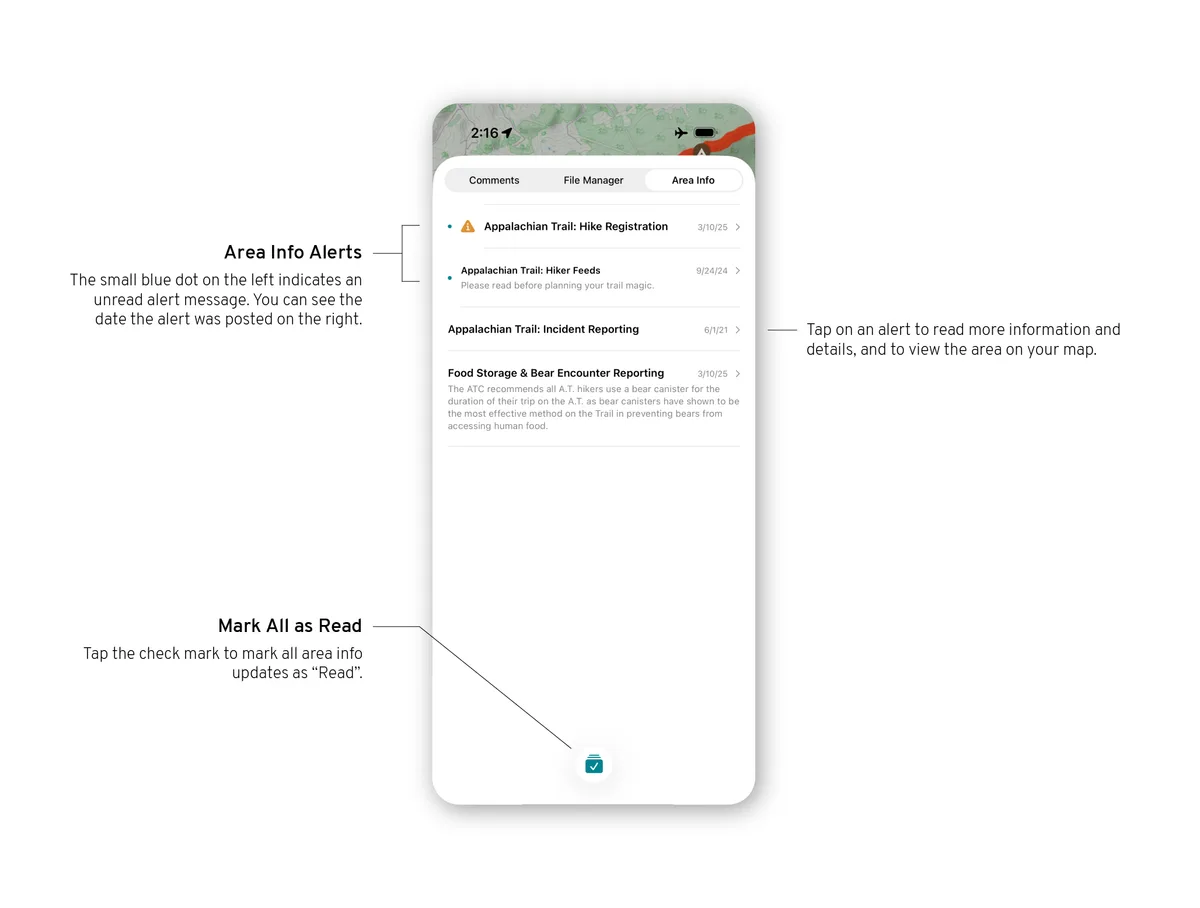
Tap the Guide Info button (the name of your guide, bottom centre) to open the Recent comments, File manager and Area info tabs.
The File manager downloads offline maps and waypoint photos while you still have cell service or Wi-Fi. They are saved in the app and work offline or in airplane mode.
Area info lists alerts for the guide: fire closures, reroutes, camping restrictions, wildlife reports, permit requirements and more.
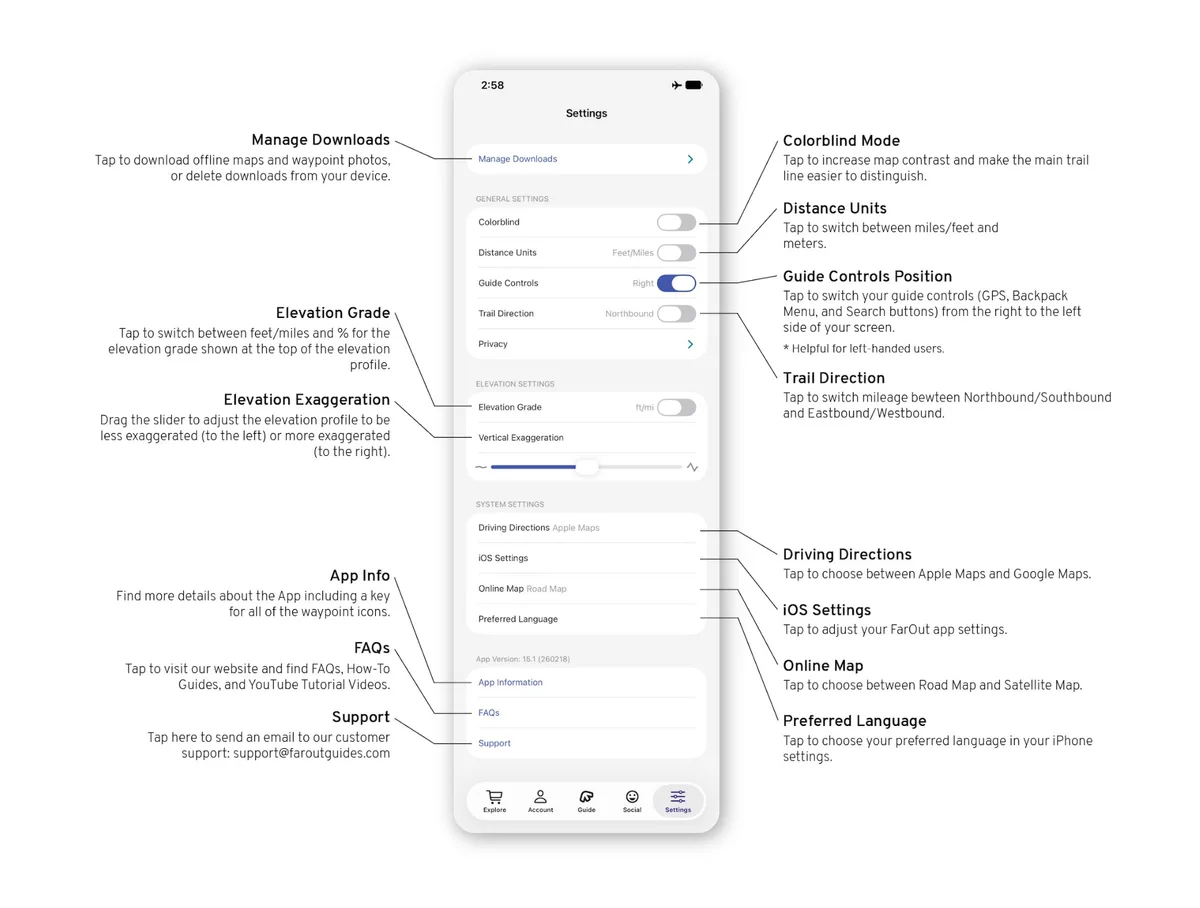
Settings
Manage downloads, adjust the app's settings and find support.
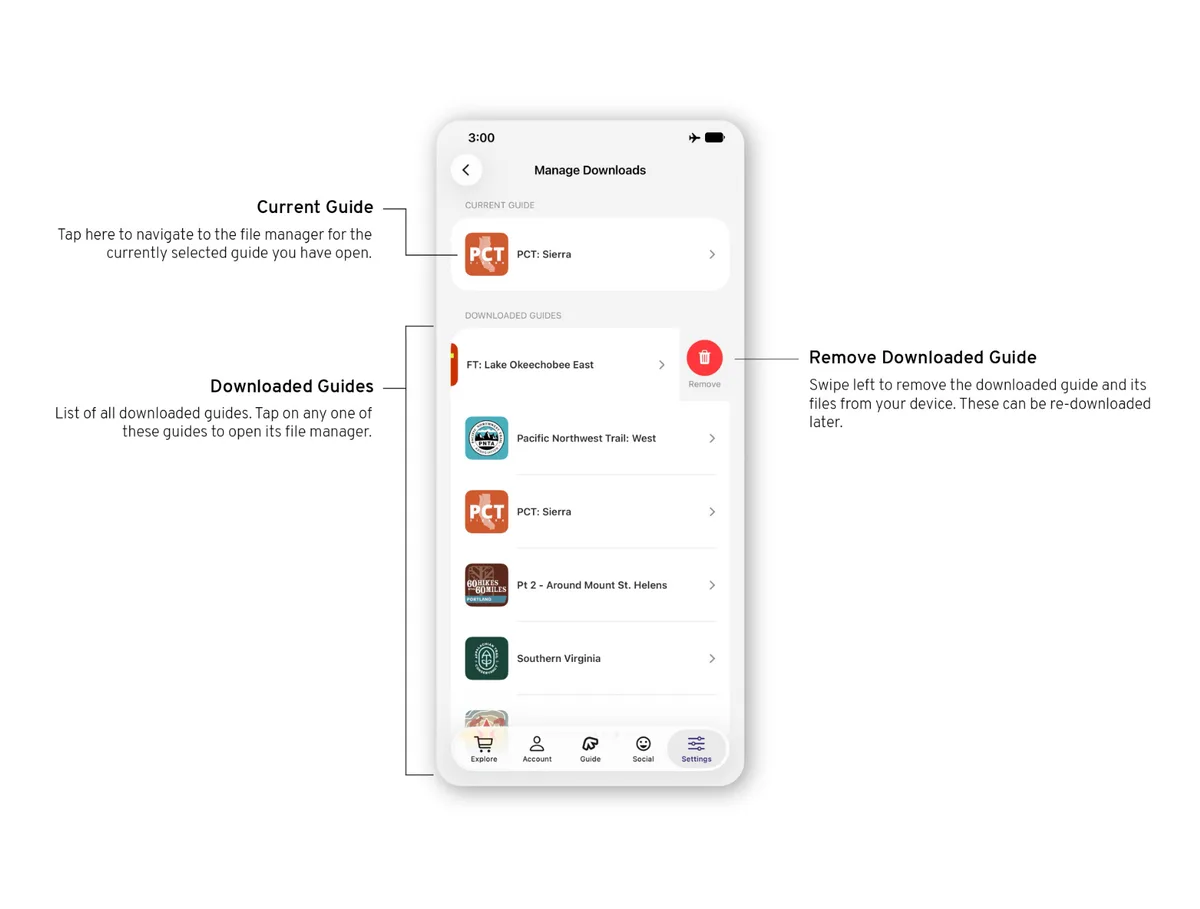
Manage downloads lists every guide you have downloaded. Remove one to free up space on your phone; you can download it again any time you have service.
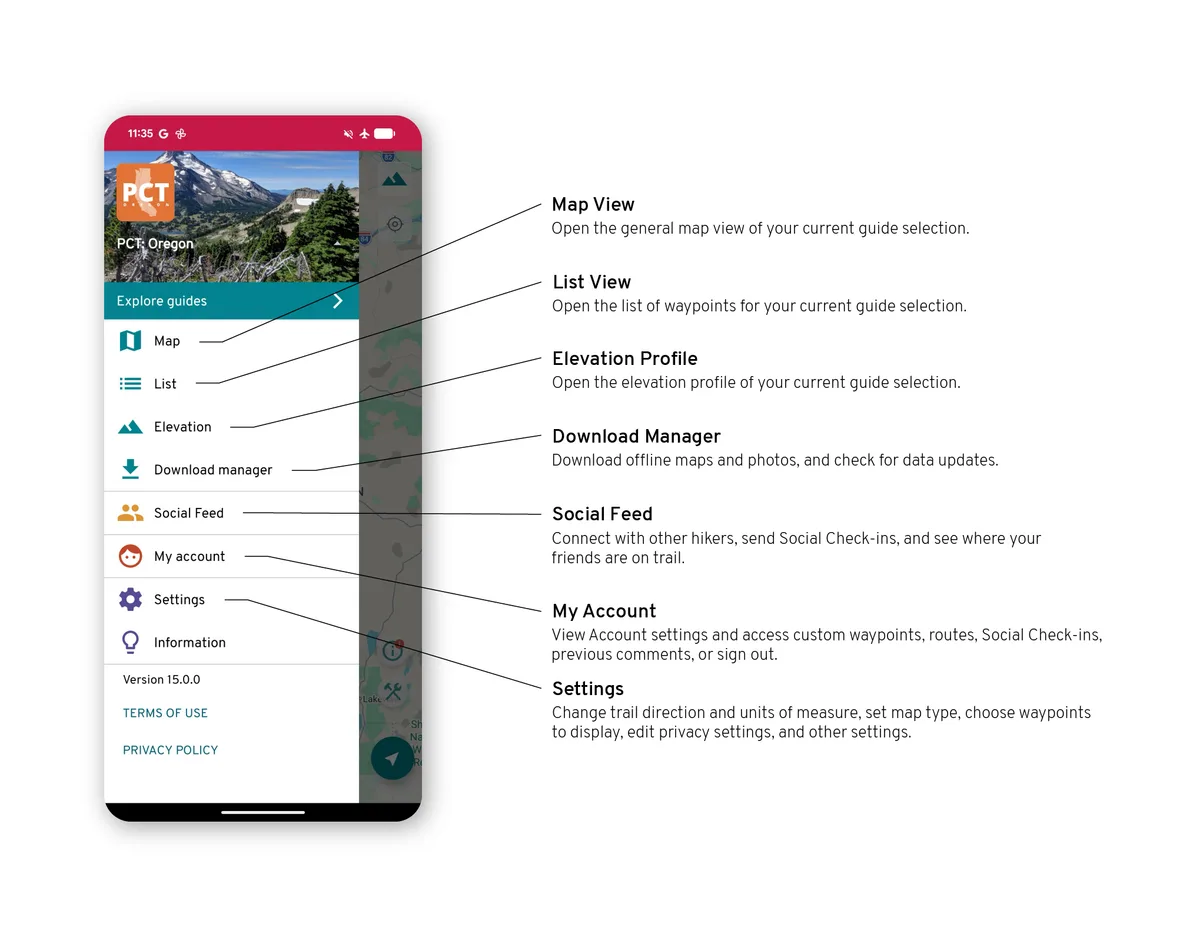
The main menu
Once you have opened a guide, the menu (three bars, top left) reaches every part of the app: Explore guides, the download manager, the social feed and your profile.
Guide view
Inside the map view of your guide you can reach the tools and see your location on the trail.