

Waypoints & comments
Waypoints
There's a campsite here, but it's not listed in your app
Along with helping adventurers, we are advocates of Leave No Trace principles. To support conservation and maintenance organizations, we list legal campsites only. Some guides, such as the Tahoe Rim Trail and Colorado Trail, list the official campgrounds and point out no-camping areas, and assume you will camp anywhere else following Leave No Trace principles. If you see an illegal campsite listed in the app, please let us know at support@faroutguides.com.
You can fit way more tents at this campsite
As hikers squeeze more tents into a campsite the area grows, and that harms the environment around it. We encourage hikers not to enlarge existing campsites.
I don't see any waypoint photos. How can I see them?
Photos take up extra space on your phone, so they are an optional download rather than an automatic one. (A few guides, such as the Ice Age Trail and Pacific Northwest Trail, do not have waypoint photos yet.)
On iPhone & iPad
- Tap Settings in the tab bar at the bottom.
- Tap Manage downloads.
- Tap the download button next to Waypoint photos. This can take a while; the download keeps going if you leave the screen.
You can remove the photos at any time by repeating the same steps.
On Android
- Open the map screen with a guide loaded.
- Tap the menu (three bars, top left).
- Tap Download manager.
- Tap Waypoint photos. This can take a while, depending on how many photos the guide has.
You can remove the photos at any time by repeating the same steps and tapping the trash icon next to Waypoint photos.
This waypoint's information is incorrect. Can you fix it?
If you think a waypoint is out of date, email us at support@faroutguides.com with "Waypoint Update: [name of trail, name of waypoint]" in the subject line.
The photo of this waypoint doesn't show the waypoint. Can you fix it?
If a waypoint's photo is wrong or out of date, or there is no photo, send us a better one at support@faroutguides.com with "Waypoint Update: [name of trail, name of waypoint]" in the subject line.
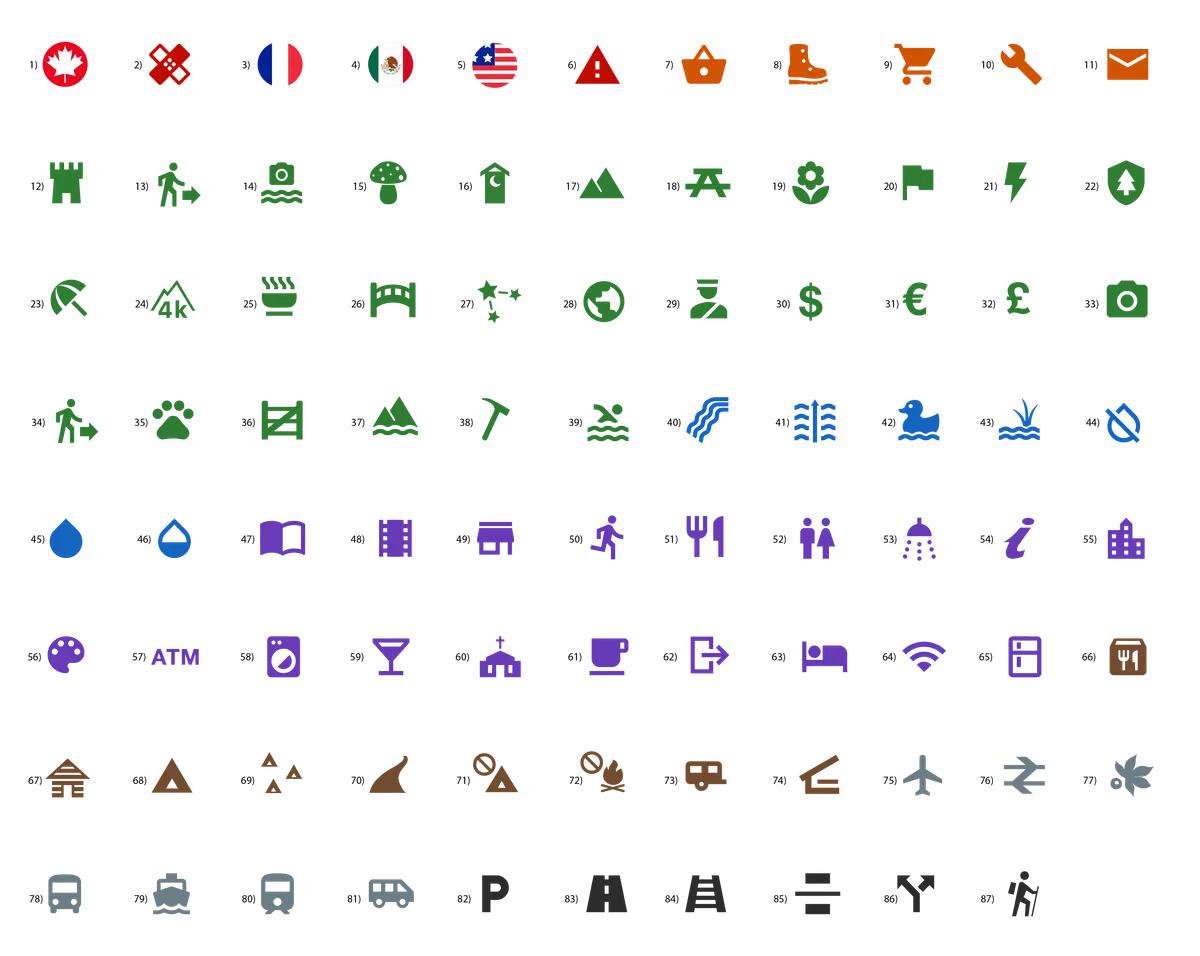
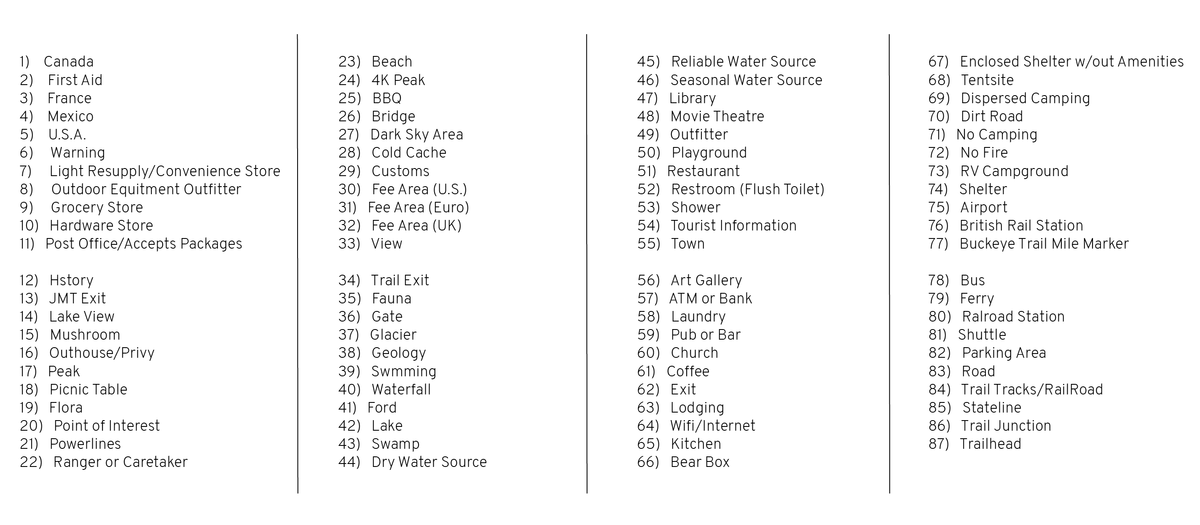
What do the waypoint icons mean?
Every waypoint on the map and in the waypoint list carries one of these icons.
Comments
I find this comment offensive. Can you remove it?
We monitor and remove inappropriate comments, but we may miss a few. Please report anything that breaks our comment policy by emailing support@faroutguides.com with "Offensive Comment Report" in the subject line, and tell us the name of the trail and the waypoint in the message.
Where are the tutorial videos?
If your comments are not loading, update them manually in the app. These videos show how:
Comment filtering
What is comment filtering?
Comment filtering lets you narrow the comments on a waypoint to specific topics, such as water sources, camping spots, connectivity, trail conditions, trail magic and lost-and-found items, so you find the most relevant information quickly.
To see all comments, leave the filters off. To see comments on one topic (for example, water), tap that filter. To see two or more topics, tap several filters.
See the how-to guide for a walkthrough.
Do you use AI to categorize comments?
Yes. Our team categorized thousands of comments to train a system that sorts comments by topic.
AI assists us in sorting comments (including for the Water Status feature), and that is the extent of its use. We do not, and never will, use AI to generate or rewrite your comments. Every comment stays exactly as you wrote it. Our team reviews the categories and can correct them.
The system uses a completely private model, fine-tuned on public FarOut comments only (personal notes are not included), with all personally identifiable data removed.
Which comment filters are available?
- Water
- Connectivity
- Camping
- Conditions
- Trail Magic
- Lost-N-Found
How do I use comment filtering?
Open the comments on a waypoint and tap one or more filters; the app then shows only the comments that match.
Filters stay selected as you move between waypoints. Turn them all off to see every comment again.
- A filter is off when the button is light and its text is colored.
- A filter is on when the button is dark and its text is white.
Can I apply multiple filters at the same time?
Yes. Select several filters to see the comments that match any of your chosen topics. If you pick Water and Camping, for example, you see every comment about water plus every comment about camping.
Turn all filters off to see every comment again.
Will filtering comments delete or hide any content permanently?
No. Filtering only changes what you see. Every comment stays visible to other users who have no filters on.
Why don't I see a filter option for some comments?
Filters apply only to comments that have been categorized. A comment that does not fit one of the filter categories stays in the general comment list.
Can I filter comments on all trails?
Yes, comment filtering is available in every trail guide.
How do I update my app to get this feature?
Make sure you are on FarOut 14.0 or later. Update through the App Store or Google Play.
Comment flagging
What is comment flagging?
Comment flagging lets you report comments that are off-topic, offensive, misleading or otherwise unhelpful, which keeps trail information respectful and relevant for everyone.
See the how-to guide for a walkthrough.
How do I flag a comment?
Tap the flag icon to the right of the comment. A text box appears where you can explain why you are flagging it, which helps our team understand the issue and act on it.
What happens after I flag a comment?
Our team reviews it. If it violates our guidelines, it is removed.
Can I flag a comment just because I disagree with it?
Flagging is for content that is off-topic, inappropriate, harmful or clearly inaccurate. Only FarOut staff see flags. If you simply disagree, you can anonymously downvote the comment instead; downvotes are visible to everyone.
Will the person who wrote the comment know I flagged it?
No. All flags are anonymous, and the commenter is not notified.
How quickly are flagged comments reviewed?
Our moderation team aims to review flagged comments promptly, but timing varies with volume.
What types of comments should I flag?
Examples include:
- Spam, advertisements or promotions
- Inappropriate language or hateful or derogatory speech
- Incorrect or misleading trail or town information
- Off-topic or outdated comments that clutter the feed
- Sensitive information, such as personal details or passwords
Can I undo a comment flag?
Not currently. If you flagged something by mistake, email support@faroutguides.com and let us know.
Waypoint reporting
What is waypoint reporting?
Waypoint reporting lets you tell us when a waypoint is outdated, inaccurate or placed incorrectly, so trail information stays reliable for everyone.
See the how-to guide for a walkthrough.
How do I report a waypoint?
On iPhone & iPad
Tap the waypoint, then tap Report waypoint under the waypoint description. A text box appears where you can describe the issue.
On Android
Tap the waypoint, tap the three dots in the top right corner, then tap Report Waypoint. A text box appears where you can describe the issue.
What types of issues should I report?
Report a waypoint when:
- A location is permanently closed (a restaurant that has shut, for example)
- A business has changed its name or services
- The waypoint is noticeably misplaced on the map
- The waypoint's information is no longer accurate
What happens after I report a waypoint?
Our team reviews every report. If the information is confirmed to be outdated or inaccurate, we update or remove the waypoint.
Will I get notified when my report is reviewed?
Not currently, but every report is reviewed by our team.
Can I report the same waypoint more than once?
Yes, if you have new or additional information. Otherwise one detailed report is enough.
Is reporting anonymous?
Yes. Other users never know you submitted a report.
What if I accidentally report a waypoint?
No problem. Email support@faroutguides.com and we will take care of it.
Comments are missing or outdated. Help!
You can update comments manually in the app.
On iPhone & iPad
On Android